
ASUS TUF Laptops: A Practical Guide
ASUS TUF laptops are designed for people who want a capable machine for gaming, study or everyday use. The range is best known for gaming-focused hardware and a robust design, but individual models vary considerably. Choosing the right one means looking beyond the TUF name and checking the specifications of the particular laptop.
What is an ASUS TUF laptop?
TUF is ASUS’s gaming range aimed at combining performance with practical features. Depending on the model, a TUF laptop may include a dedicated graphics card, a high-refresh-rate display and a cooling system designed to manage demanding workloads. These features can make one suitable not only for games, but also for tasks such as video editing, 3D work and other graphics-intensive applications.
Some models are sold under the TUF Gaming A-series or F-series names. Specifications and availability change over time, so it is worth comparing the exact model numbers rather than assuming that every laptop in the range offers the same performance.
Performance and graphics
Performance depends on the processor, graphics card, memory and cooling configuration. A model with a more powerful dedicated GPU may be better suited to modern games at higher settings, while a less powerful configuration could be a sensible choice for casual gaming and general computing.
Before buying, consider the games and applications you plan to use. Check their recommended requirements, then compare them with the laptop’s specifications. It is also useful to look at independent reviews, as real-world performance can differ between models with similar-looking component names.
Display, keyboard and everyday use
Many ASUS TUF gaming laptops feature displays with higher refresh rates, which can make movement look smoother in supported games. Screen resolution, brightness, colour coverage and panel type also affect the experience, particularly if you use the laptop for creative work or watch a lot of video.
The keyboard is another important consideration. If possible, try it in person or read reviews that discuss typing comfort, key layout and backlighting. Also check the available ports, webcam, wireless connectivity and battery life. Gaming laptops can be heavier and may need to be plugged in for demanding tasks, so portability is worth weighing against performance.
Build and cooling
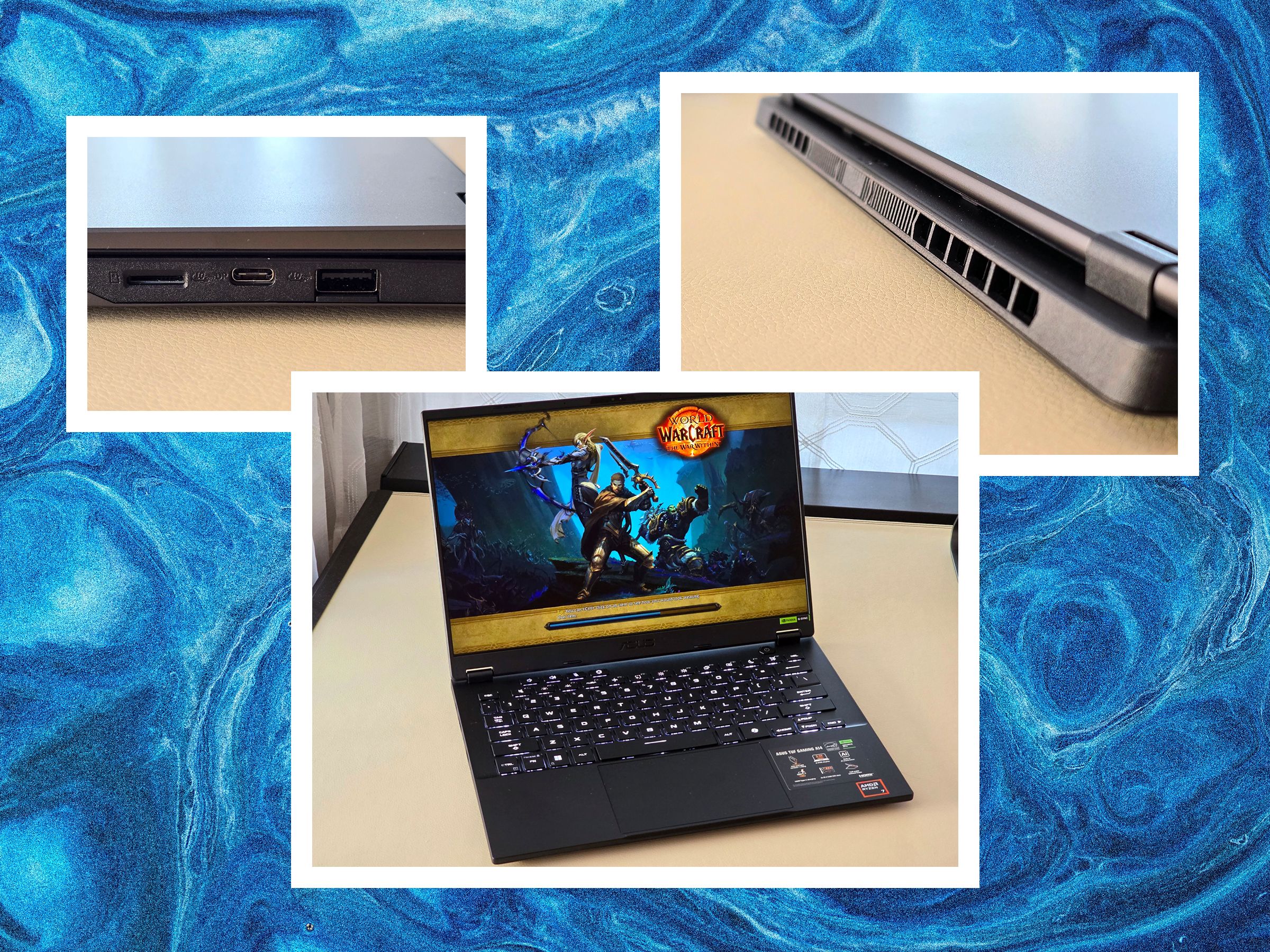
The TUF range has a durable, gaming-inspired look, though materials and construction can differ between generations and configurations. Cooling is particularly important in a gaming laptop: fans may become audible under heavy load, and performance can vary depending on how effectively the system manages heat.
For the best experience, use the laptop on a firm, flat surface and keep its air vents clear. A cooling stand may help with airflow, but it cannot replace a well-designed cooling system or fix every temperature issue.
How to choose the right model
- Set a budget: Compare the whole specification, not just the graphics card or processor.
- Match performance to your needs: Consider the games, software and resolution you expect to use.
- Check memory and storage: Look at the installed capacity and whether the laptop allows upgrades.
- Compare displays: Review resolution, refresh rate, brightness and colour reproduction.
- Consider portability: Check the laptop’s weight, charger size and battery-life reviews.
- Check the exact model number: Similar names can refer to different specifications, screens or ports.
- Review warranty and returns: Confirm the retailer’s terms before purchasing.
Is an ASUS TUF laptop right for you?
An ASUS TUF laptop could be a good option if you want a gaming-capable computer that can also handle everyday tasks and selected creative workloads. The range includes different configurations and price points, so there is no single TUF laptop that will suit everyone. Comparing the exact specifications, reading recent reviews and thinking about how you will use it can help you find the model that offers the right balance of performance, price and portability.
Optimising Your ASUS TUF Laptop: Six Essential Tips for Peak Performance
- Keep the cooling vents clear for better airflow.
- Use Armoury Crate, if available, to adjust performance modes.
- Plug in the charger for demanding games or tasks.
- Update Windows, drivers and BIOS through official ASUS tools.
- Clean the keyboard and vents gently with the laptop switched off.
- Use a sturdy, well-ventilated surface while gaming.
Keep the cooling vents clear for better airflow.
Keep the cooling vents on your ASUS TUF laptop clear to help air circulate and carry heat away from its components. Use the laptop on a firm, flat surface rather than a bed, cushion or blanket, which can block the vents. Regularly remove dust around the openings with care, and avoid placing the laptop in enclosed spaces while it is running, especially during gaming or other demanding tasks.
Use Armoury Crate, if available, to adjust performance modes.
If your ASUS TUF laptop includes Armoury Crate, use it to choose a performance mode that suits what you’re doing. A quieter or energy-saving mode can help reduce fan noise and conserve battery during everyday tasks, while a performance-focused mode may be more suitable for gaming or demanding applications. Keep the laptop well ventilated, as higher performance settings can increase heat and fan noise, and remember that available modes vary by model.
Plug in the charger for demanding games or tasks.
For demanding games or resource-intensive tasks, plug your ASUS TUF laptop into its charger. This helps it deliver the power needed for better performance and prevents the battery from draining quickly. Use the supplied charger where possible, and keep the laptop’s vents clear while it’s running under heavy load.
Update Windows, drivers and BIOS through official ASUS tools.
Keep your ASUS TUF laptop running smoothly by installing Windows updates and checking for driver and BIOS updates using official ASUS tools, such as MyASUS or the support page for your exact model. Updates can improve compatibility, stability and security, but make sure you select the correct model and follow ASUS’s instructions carefully. Before updating the BIOS, connect the laptop to power, save your work and avoid interrupting the process.
Clean the keyboard and vents gently with the laptop switched off.
Switch off your ASUS TUF laptop and unplug it before cleaning. Gently wipe the keyboard with a soft, dry, lint-free cloth, and use a soft brush or short bursts of compressed air to clear dust from the vents. Avoid pressing debris further into the keys or spraying liquid directly onto the laptop, and make sure the vents are clear before switching it back on.
Use a sturdy, well-ventilated surface while gaming.
When gaming on your ASUS TUF laptop, place it on a sturdy, flat surface with plenty of space around its air vents. This helps the cooling system draw in air and expel heat, reducing the risk of overheating and performance dips during demanding games. Avoid using the laptop on soft surfaces such as a bed or sofa, as these can block the vents.