
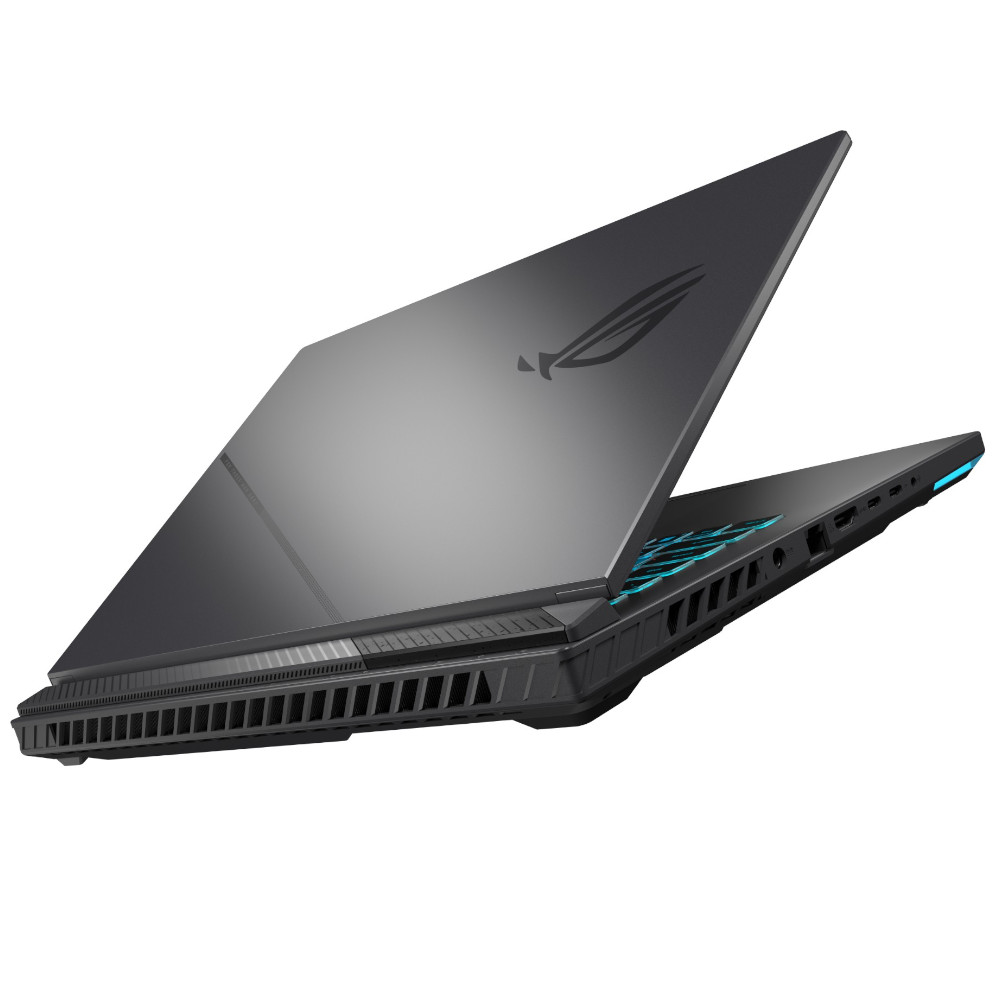
ROG Gaming Laptops: What to Look For Before You Buy
An ROG gaming laptop is designed for people who want strong gaming performance in a portable format. ROG, short for Republic of Gamers, is ASUS’s gaming brand, with laptops ranging from relatively compact models to larger machines built for demanding games and creative work.
The right laptop depends on more than its graphics card. Screen quality, cooling, battery life, keyboard comfort and portability all affect the experience. Here’s what to consider when comparing ROG gaming laptops.
What is an ROG gaming laptop?
ROG laptops combine gaming-focused hardware with features intended to make performance easier to manage. Depending on the model, these may include a high-refresh-rate display, dedicated graphics, adjustable performance modes, advanced cooling and customisable keyboard lighting.
Specifications differ between ranges and generations, so it’s worth checking the details of the exact laptop you’re considering. Two ROG models may look similar while offering quite different processors, graphics, memory, storage and screen options.
Performance for gaming and everyday tasks
The processor and graphics card have the greatest influence on gaming performance. The graphics card is especially important for modern games, high resolutions and demanding visual effects. A more powerful configuration can also be useful for video editing, 3D work and other intensive applications.
Think about the games you play and the settings you expect to use. Competitive games may benefit from a high frame rate, while visually rich single-player games can place greater demands on graphics performance. Checking independent reviews of the specific configuration can give you a clearer idea of how it performs in practice.
Choosing a display
Gaming laptops can offer displays with different resolutions, refresh rates, sizes and panel technologies. A higher refresh rate can make motion look smoother, which is particularly useful in fast-paced games. A higher resolution can deliver a more detailed image, but it also asks more of the graphics hardware.
Consider how you’ll use the screen outside gaming, too. Colour reproduction and brightness matter for watching films, browsing and creative tasks. If you often connect an external monitor, the built-in display may be less important than the laptop’s ports and graphics capabilities.
Cooling, noise and performance modes
Gaming components produce heat, so a laptop’s cooling system plays an important role. ROG models typically include dedicated cooling features, but temperatures and fan noise vary by model and workload. Fans may become audible during demanding games, particularly when the laptop is set to a high-performance mode.
Performance software can provide different settings for balancing speed, fan noise and power use. Use a suitable hard surface to keep ventilation clear, and follow the manufacturer’s guidance for cleaning and maintenance.
Portability and battery life
A gaming laptop offers more flexibility than a desktop, but powerful hardware can make it heavier and reduce battery life during demanding use. Smaller models may be easier to carry, while larger laptops can provide more screen space and room for cooling.
Battery performance depends on the configuration, settings and what you’re doing. For gaming, the best performance is generally achieved when the laptop is plugged into its power adapter. If you need a machine for travel or classes, check its weight, charger size and battery results in reviews.
Keyboard, connectivity and upgrades
A comfortable keyboard can make a noticeable difference during long gaming sessions. Look for a layout that suits your needs, including the position of the arrow keys and whether a number pad is important to you. Headset and controller support may also be worth considering.
Check the ports before buying, especially if you plan to connect an external display, wired network, storage devices or other accessories. Upgrade options vary: some models may allow you to expand memory or storage, while others offer fewer opportunities. Confirm the specification and warranty conditions before making changes.
How to choose the right ROG laptop
- Set a budget: Compare complete configurations, not just the product range or model name.
- Match the hardware to your games: Prioritise graphics performance for demanding titles and higher visual settings.
- Choose a suitable screen: Balance resolution, refresh rate, size and image quality.
- Consider where you’ll use it: Portability, charger size and battery life matter if you’ll carry it regularly.
- Read reviews of the exact configuration: Performance, noise and temperatures can differ between versions.
- Check the practical details: Review available ports, storage capacity, memory and upgrade options.
Is an ROG gaming laptop worth considering?
An ROG gaming laptop may suit you if you want a portable computer for gaming and other demanding tasks, and you value features such as dedicated graphics, a fast display and gaming-focused controls. The range includes different sizes and configurations, so there may be options for a variety of needs and budgets.
Before choosing, compare the exact specifications and consider how you’ll use the laptop day to day. A well-matched configuration is usually a better choice than simply opting for the most powerful model available.
7 Tips to Get the Best from Your ROG Gaming Laptop
- Keep your ROG laptop on a hard, flat surface for better airflow.
- Use Armoury Crate to switch performance modes.
- Update your graphics drivers for the latest fixes.
- Plug in the charger for demanding games.
- Clean the vents regularly to reduce dust build-up.
- Lower graphics settings if games feel sluggish.
- Use a headset for clearer audio and chat.
Keep your ROG laptop on a hard, flat surface for better airflow.
For better airflow, use your ROG gaming laptop on a hard, flat surface, such as a desk or table. Soft surfaces like beds, sofas and cushions can block the ventilation openings, making it harder for the cooling system to manage heat. Keeping the vents clear can help your laptop stay cooler and maintain performance during demanding games.
Use Armoury Crate to switch performance modes.
Use Armoury Crate to switch between performance modes to suit what you’re doing. Choose a quieter or more power-efficient setting for everyday tasks, then switch to a higher-performance mode for gaming or other demanding workloads. Keep in mind that stronger performance can mean louder fans, more heat and shorter battery life, and that the available modes may vary by ROG laptop model.
Update your graphics drivers for the latest fixes.
Keep your ROG gaming laptop’s graphics drivers up to date to benefit from the latest fixes, performance improvements and support for new games. Download updates through the graphics card manufacturer’s official software or website, and restart your laptop if prompted. Before installing, check that the driver is compatible with your graphics card and version of Windows.
Plug in the charger for demanding games.
For the best performance in demanding games, plug your ROG gaming laptop into its charger. Gaming on battery power can limit performance and drain the battery quickly, while connecting the charger helps the laptop deliver power to its processor and graphics card. Use the supplied adapter where possible, and keep the laptop’s air vents clear to support cooling during longer sessions.
Clean the vents regularly to reduce dust build-up.
Clean your ROG gaming laptop’s vents regularly to help prevent dust from building up and restricting airflow. Switch the laptop off and unplug it before cleaning, then use a soft brush or compressed air carefully, following the manufacturer’s guidance. Clear vents help the cooling system work effectively, particularly during demanding gaming sessions.
Lower graphics settings if games feel sluggish.
If a game feels sluggish on your ROG gaming laptop, try lowering its graphics settings. Reducing options such as shadows, reflections, resolution or visual effects can ease the load on the graphics card and help the game run more smoothly. Adjust one setting at a time, or choose a lower preset, until you find a good balance between performance and image quality.
Use a headset for clearer audio and chat.
Use a headset with your ROG gaming laptop for clearer in-game audio and voice chat. It can help you hear important details, such as footsteps and environmental cues, while keeping conversations with teammates easier to follow. For the best experience, choose a comfortable headset with a microphone and check that it connects to your laptop’s available ports or supports Bluetooth.