
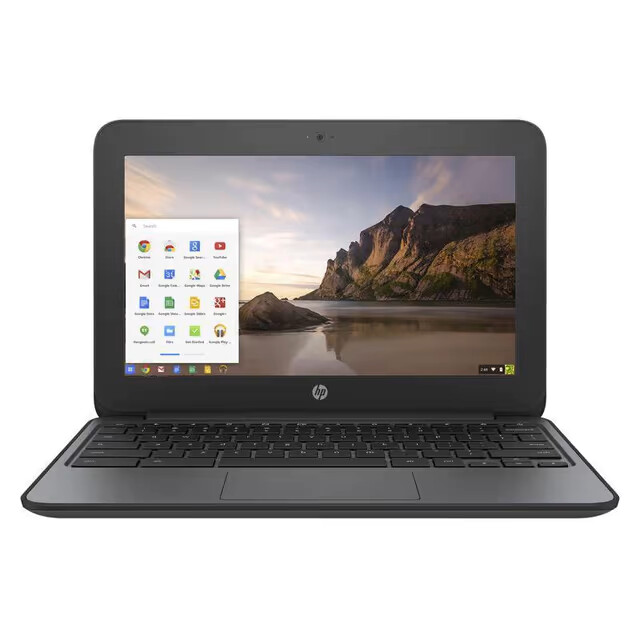
Chromebook: The Ultimate Guide to Google’s Laptop Alternative
Chromebooks have become increasingly popular in recent years as a lightweight, affordable alternative to traditional laptops. Powered by Google’s Chrome OS, these sleek devices offer a range of benefits for users looking for a simple and efficient computing experience.
One of the key advantages of Chromebooks is their speed. Thanks to their minimalist operating system, Chromebooks boot up quickly and run smoothly, making them ideal for everyday tasks such as web browsing, email, and document editing. With built-in security features and automatic updates, Chromebooks also provide a secure computing environment without the need for additional antivirus software.
Another standout feature of Chromebooks is their integration with Google’s suite of productivity tools. From Gmail and Google Docs to Google Drive and Hangouts, Chromebook users have access to a range of cloud-based applications that make collaboration and productivity a breeze. With seamless syncing across devices, you can pick up where you left off on any Chromebook or compatible device.
In terms of design, Chromebooks are known for their sleek and lightweight build. With compact sizes and long battery life, they are perfect for on-the-go use whether you’re working in a coffee shop or travelling on a plane. Many models also feature touchscreens and convertible designs that allow you to use them as both laptops and tablets.
Overall, Chromebooks offer an affordable, user-friendly computing experience that is well-suited for students, professionals, and casual users alike. If you’re looking for a reliable laptop alternative that prioritises speed, security, and simplicity, a Chromebook may be the perfect choice for your needs.
Top 6 Tips for Enhancing Your Chromebook Experience
- Use the Google Play Store to download apps and games for your Chromebook.
- Take advantage of Google Drive for cloud storage and easy access to your files from anywhere.
- Customise your shelf by right-clicking on icons and selecting ‘Pin’ or ‘Unpin’.
- Enable offline mode in Google Docs, Sheets, and Slides to work without an internet connection.
- Use keyboard shortcuts like Ctrl + Alt + / for a list of available shortcuts on your Chromebook.
- Regularly update your Chromebook’s operating system to ensure security and performance improvements.
Use the Google Play Store to download apps and games for your Chromebook.
Utilise the Google Play Store to access a wide array of apps and games tailored for your Chromebook. By tapping into this extensive library, you can enhance your Chromebook experience with productivity tools, entertainment options, and games that cater to your preferences. The integration of the Google Play Store expands the functionality of your Chromebook, allowing you to customise it to suit your needs and interests effortlessly.
Take advantage of Google Drive for cloud storage and easy access to your files from anywhere.
Chromebook users can maximise their productivity by utilising Google Drive for convenient cloud storage and seamless access to their files from any location. By storing documents, photos, and other files on Google Drive, users can ensure that their data is securely backed up and easily accessible across devices. Whether you’re working on a project at home, in the office, or on the go, Google Drive provides a reliable solution for storing and syncing files, making collaboration and file management effortless on your Chromebook.
Customise your shelf by right-clicking on icons and selecting ‘Pin’ or ‘Unpin’.
Customise your Chromebook experience by easily organising your shelf icons. Simply right-click on the icons you want to prioritise and select ‘Pin’ to keep them visible for quick access, or choose ‘Unpin’ to remove them from the shelf. This handy tip allows you to personalise your workspace and streamline your workflow on your Chromebook effortlessly.
Enable offline mode in Google Docs, Sheets, and Slides to work without an internet connection.
Enabling offline mode in Google Docs, Sheets, and Slides on your Chromebook allows you to continue working seamlessly even without an internet connection. This feature ensures that you can access and edit your documents, spreadsheets, and presentations offline, making it convenient for users who need to work on their files while on the go or in areas with limited connectivity. By enabling offline mode, you can stay productive and make edits to your files without worrying about being online, providing a flexible and efficient working experience with your Chromebook.
Use keyboard shortcuts like Ctrl + Alt + / for a list of available shortcuts on your Chromebook.
To enhance your productivity and streamline your workflow on a Chromebook, take advantage of useful keyboard shortcuts like Ctrl + Alt + / to access a comprehensive list of available shortcuts. By mastering these key combinations, you can navigate your Chromebook more efficiently and perform tasks with greater speed and ease. Whether you’re a student, professional, or casual user, incorporating keyboard shortcuts into your daily routine can significantly improve your overall computing experience on a Chromebook.
Regularly update your Chromebook’s operating system to ensure security and performance improvements.
It is crucial to regularly update your Chromebook’s operating system to guarantee optimal security and performance enhancements. By keeping your Chromebook up-to-date with the latest software updates provided by Google, you can ensure that your device remains protected against potential security threats and vulnerabilities. Additionally, these updates often include improvements that can enhance the overall performance and functionality of your Chromebook, ensuring a smooth and efficient user experience. By staying vigilant with system updates, you can maximise the benefits of your Chromebook while maintaining a secure computing environment.