
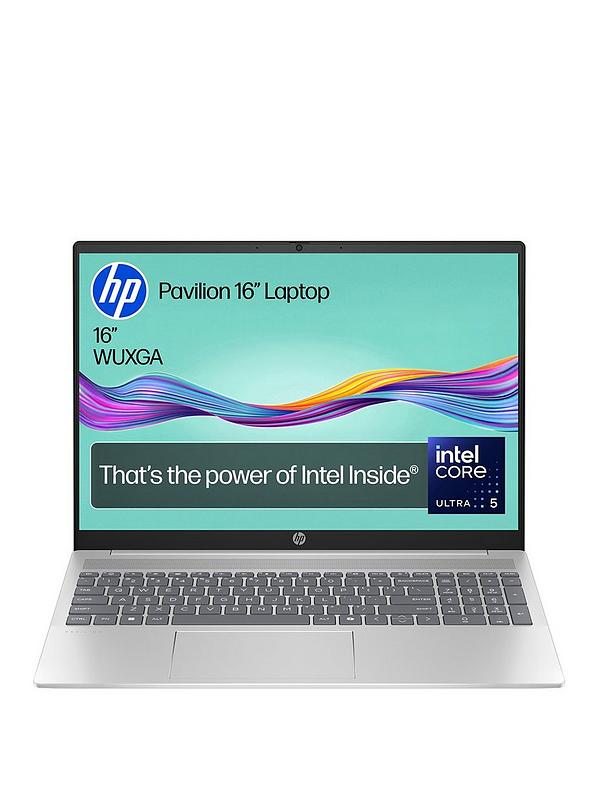
HP Pavilion Laptop: A Practical Guide for Everyday Use
An HP Pavilion laptop is designed for people who want a versatile computer for everyday tasks, study and entertainment. The Pavilion range includes different models and configurations, so you can choose a laptop to suit your needs, whether that means writing assignments, joining video calls, browsing the web or streaming films.
What is an HP Pavilion laptop?
HP Pavilion is a family of consumer laptops from HP. Depending on the model, a Pavilion may have a traditional clamshell design or a convertible touchscreen that can be used in different positions. Screen sizes, processors, memory, storage and other features vary across the range, so it is worth checking the specifications of the exact model before buying.
What can you use one for?
For everyday computing, a Pavilion can handle tasks such as email, web browsing, document editing, online shopping and video calls. Models with suitable specifications can also be used for more demanding work, including photo editing and light gaming. Performance will depend on the particular processor, graphics hardware, memory and cooling design, rather than the Pavilion name alone.
Students may appreciate the range’s combination of familiar laptop features and options at different price points. For home use, a larger display can make it more comfortable to watch video or work with several windows open, while a lighter model may be easier to carry between home, work and university.
What to look for when choosing a Pavilion
- Processor: Choose a processor suited to the applications you use. Everyday browsing and office work have different demands from creative software or gaming.
- Memory: More memory can help when running several applications at once. Check whether it can be upgraded, as this varies by model.
- Storage: Consider how much room you need for documents, photos, applications and downloads. Solid-state storage can help a laptop start up and load applications quickly.
- Display: Compare screen size, resolution, brightness and whether you want a touchscreen. A higher-resolution display can show more detail, but may affect battery life.
- Battery and portability: If you plan to carry the laptop or work away from a socket, check its weight and independent battery-life reviews.
- Ports and connectivity: Make sure the laptop has the connections you need for accessories, external displays and storage devices.
- Operating system and software: Check what is included and whether the model meets the requirements of the programmes you plan to use.
Benefits and things to consider
The Pavilion range offers plenty of choice, with models aimed at different budgets and uses. That makes it possible to compare features and select a laptop without automatically paying for high-end hardware you may not need. Some models also offer useful extras such as a touchscreen, a backlit keyboard or enhanced audio, though availability varies.
As with any laptop family, not every Pavilion is suitable for every task. A basic configuration may be a good fit for web browsing and documents but less suitable for demanding editing or modern games. Battery life, screen quality and build also differ between models. Comparing the full specification and reading reviews of the exact product code can help avoid surprises.
Is an HP Pavilion laptop right for you?
An HP Pavilion may be a good option if you want a general-purpose laptop for home, study or work and would like a choice of configurations. Start by listing the tasks you need it to handle, then compare the processor, memory, storage, screen and portability of individual models. If your work involves intensive 3D design, professional video editing or high-performance gaming, compare Pavilion options with laptops built specifically for those workloads.
Frequently asked questions
Are HP Pavilion laptops suitable for students?
Many Pavilion models can suit students who need a laptop for research, writing, online learning and video calls. The best choice depends on the software required by the course, how often the laptop will be carried and the available budget.
Can you play games on an HP Pavilion laptop?
Some Pavilion models can run games, but gaming performance varies considerably. Check the graphics hardware and the recommended requirements for the games you want to play. A laptop with dedicated graphics is generally better suited to more demanding games than one relying on integrated graphics.
How do you choose between Pavilion models?
Compare the exact specifications rather than relying on the product name alone. Pay particular attention to the processor, memory, storage, display and graphics, and check the warranty and return terms before purchasing.
In summary
An HP Pavilion laptop can be a flexible choice for everyday computing, with a variety of designs and specifications to consider. Taking the time to match a specific model to your needs is the best way to find one that offers the right balance of performance, portability and price.
Top 8 Tips for Maintaining Your HP Pavilion Laptop
- Keep the vents clear to prevent overheating.
- Use the correct HP charger for your model.
- Install Windows and HP updates regularly.
- Lower screen brightness to save battery.
- Avoid blocking the laptop’s cooling vents.
- Back up important files often.
- Use a padded case when travelling.
- Check your model’s manual for upgrade options.
Keep the vents clear to prevent overheating.
Keep your HP Pavilion laptop’s air vents clear to help it stay cool and work reliably. Use it on a firm, flat surface rather than a bed, sofa or cushion, which can block airflow, and regularly remove dust around the vents with the laptop switched off. Good ventilation helps prevent overheating and can reduce the risk of the laptop slowing down during use.
Use the correct HP charger for your model.
Use the correct HP charger for your Pavilion laptop model to ensure it receives the right power and charges safely. Check the laptop’s label, user guide or HP support website for the required charger type and wattage, and choose a genuine HP adapter or a compatible replacement that meets those specifications. Using an unsuitable charger may lead to slow charging, unreliable performance or damage to the laptop.
Install Windows and HP updates regularly.
Keep your HP Pavilion laptop secure and running smoothly by installing Windows and HP updates regularly. These updates can fix security issues, improve performance and compatibility, and resolve known bugs. Connect to the internet, save your work and check Windows Update and the HP Support Assistant for available updates; restart your laptop when prompted to complete the installation.
Lower screen brightness to save battery.
Lowering your HP Pavilion laptop’s screen brightness is a simple way to help extend battery life, especially when you’re working away from a power socket. Set the display to a comfortable level rather than maximum brightness, and reduce it further in dim surroundings. You can usually adjust brightness using the keyboard’s brightness keys or the display settings in Windows.
Avoid blocking the laptop’s cooling vents.
Avoid blocking your HP Pavilion laptop’s cooling vents, as restricted airflow can cause it to overheat, slow down or become noisy. Use it on a firm, flat surface rather than a bed, sofa or cushion, and keep the vents clear of dust and other obstructions.
Back up important files often.
Back up important files regularly to protect them if your Pavilion laptop is lost, damaged or affected by a technical problem. Save copies of documents, photos and other valuable files to an external drive or a trusted cloud storage service, and check occasionally that your backups can be accessed.
Use a padded case when travelling.
Use a padded case when travelling with your Pavilion laptop to help protect it from knocks, scratches and pressure inside a bag. Choose a case that fits the laptop snugly, with enough cushioning around the edges, and avoid placing heavy items on top of it. Before packing, shut the laptop down or close it safely, and keep liquids away from your devices.
Check your model’s manual for upgrade options.
Before upgrading your HP Pavilion laptop, check the manual for your exact model to see which components can be replaced or expanded. Memory, storage and other parts vary between models, and some may be soldered in or difficult to access. Confirming compatibility first can help you avoid buying unsuitable components and ensure the upgrade is safe.