
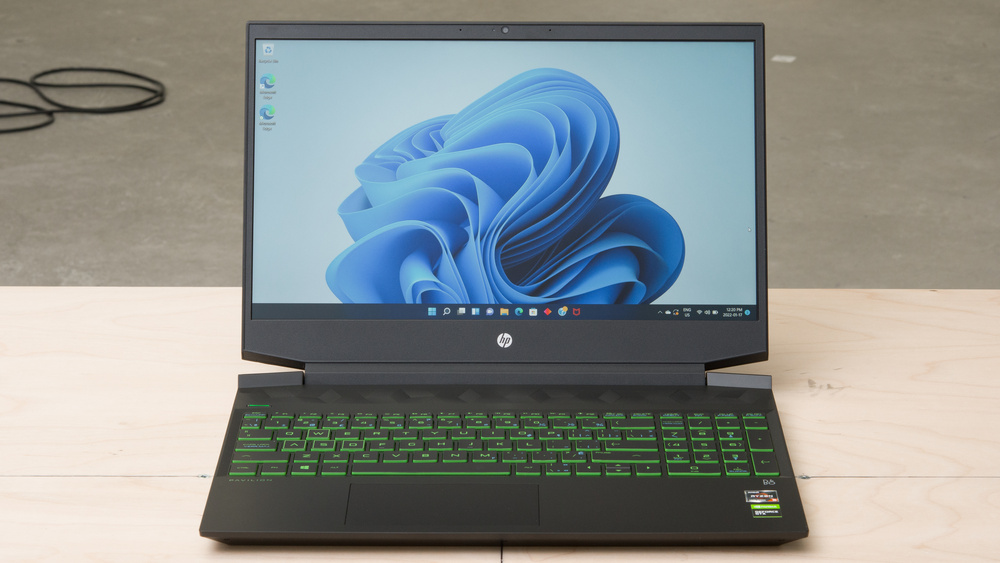
HP Pavilion Notebook: A Practical Guide for Everyday Computing
An HP Pavilion notebook is a laptop from HP’s Pavilion family, designed for everyday tasks such as browsing the web, working on documents, streaming films and attending video calls. Pavilion models come in a range of sizes and configurations, so the exact performance, features and price depend on the particular model and year.
What can you use an HP Pavilion notebook for?
For many people, a Pavilion notebook can handle common home, study and office tasks. Depending on its specification, it may be suitable for:
- Writing documents, creating presentations and working with spreadsheets
- Browsing websites, shopping online and checking email
- Watching films and streaming TV programmes
- Video calls and online learning
- Light photo editing and other creative tasks
More demanding work, such as modern gaming, professional video editing or complex 3D design, calls for closer attention to the processor, graphics hardware, memory and cooling. A Pavilion model is not automatically equipped for these workloads, so check the specifications of the exact notebook before buying.
Features to compare
Processor and memory
The processor affects how quickly a laptop can handle tasks, while memory (RAM) helps it run several applications at once. If you regularly keep many browser tabs open or use demanding software, look for a configuration with enough memory for your needs. Some laptops have memory that cannot be upgraded later, so check this before making a decision.
Storage
Many contemporary notebooks use solid-state storage (SSD), which can help the computer start up and load applications quickly. Consider how much room you need for documents, photos, games and other files. If you store a large media library, you may need a higher-capacity drive or an external storage option.
Screen size and display
Screen size is a balance between portability and workspace. A smaller notebook can be easier to carry, while a larger display may be more comfortable for working with multiple windows or watching video. Resolution, brightness and screen finish also affect the viewing experience. If possible, check the display details for the model you are considering rather than relying on the Pavilion name alone.
Battery life and portability
Battery life varies with the model, workload, screen brightness and settings. Manufacturer estimates are usually based on particular test conditions and may differ from everyday use. If you plan to work away from a power socket, look for independent reviews and consider the notebook’s weight as well as its stated battery life.
Ports and wireless connections
Check that the notebook has the connections you need, such as USB ports, HDMI or a headphone socket. Port selection can differ between models. Wi-Fi and Bluetooth capabilities may also vary, so review the full specification if reliable wireless connectivity or particular accessories are important to you.
Is an HP Pavilion notebook right for you?
A Pavilion notebook may be worth considering if you want a general-purpose laptop for home, study or everyday work. The range includes different configurations, allowing shoppers to compare size, performance and features against their budget.
Before buying, compare the exact model number and specification. Check the processor, RAM, storage, screen, ports, operating system, warranty and return terms. Reviews of the specific configuration can also help you understand how it performs in real-world use.
Frequently asked questions
Are all HP Pavilion notebooks the same?
No. Pavilion is a product family, not a single specification. Components, screen sizes, design and features vary between models and generations.
Can an HP Pavilion notebook be used for gaming?
Some models may run less demanding games, but gaming performance depends on the specific graphics hardware and other components. Check the requirements of the games you want to play and compare them with the notebook’s specifications.
Is a Pavilion notebook suitable for students?
It can be, particularly for research, writing, online learning and video calls. Students should also consider portability, battery life, storage and any software requirements for their course.
Final thoughts
The HP Pavilion notebook range offers options for everyday computing, but the name alone does not tell you how a particular laptop will perform. Compare individual models carefully and choose the configuration that best matches your intended use, budget and portability needs.
Essential FAQs About HP Pavilion Notebooks: Features, Performance, and Maintenance
- What is an HP Pavilion notebook?
- Is an HP Pavilion notebook suitable for students?
- Can an HP Pavilion notebook run games?
- How long does the battery last on an HP Pavilion notebook?
- Can I upgrade the RAM or storage on an HP Pavilion notebook?
- How do I take a screenshot on an HP Pavilion notebook?
- How do I connect an HP Pavilion notebook to Wi-Fi?
- How do I reset or restore an HP Pavilion notebook to its factory settings?
What is an HP Pavilion notebook?
An HP Pavilion notebook is a laptop from HP’s Pavilion range, designed for everyday use such as browsing the web, writing documents, streaming videos and attending video calls. Models vary in size, performance and features, so it’s worth checking the specifications of a particular notebook to see whether it suits your needs.
Is an HP Pavilion notebook suitable for students?
An HP Pavilion notebook can be a suitable choice for students, offering a practical option for writing assignments, researching online, joining video calls and streaming lectures. The best model depends on the course and how you plan to use it, so compare the processor, memory, storage, screen size, weight and battery life before buying. Students using specialist software or working with demanding creative applications should also check the recommended system requirements.
Can an HP Pavilion notebook run games?
Yes, an HP Pavilion notebook can run games, but performance depends on the specific model and its processor, graphics hardware and memory. Models with integrated graphics are generally better suited to casual or less demanding games, while more powerful configurations may handle some modern games at suitable settings. Check the game’s system requirements against the notebook’s specifications, and look for reviews of the exact model before buying.
How long does the battery last on an HP Pavilion notebook?
Battery life on an HP Pavilion notebook varies by model, battery capacity and how you use it. Tasks such as browsing or writing documents may use less power than gaming, video editing or streaming, while screen brightness, Wi-Fi use and background apps can also affect how long a charge lasts. Check the specifications and independent reviews for the exact model, and remember that real-world battery life may differ from HP’s estimates.
Can I upgrade the RAM or storage on an HP Pavilion notebook?
Whether you can upgrade the RAM or storage on an HP Pavilion notebook depends on the exact model. Some models have accessible, replaceable memory or storage, while others have RAM soldered to the motherboard and cannot be upgraded. Check the notebook’s product number and maintenance guide before buying components or opening the case, and confirm that any replacement parts are compatible. If you are unsure, contact HP support or a qualified repair technician.
How do I take a screenshot on an HP Pavilion notebook?
To take a screenshot on an HP Pavilion notebook running Windows, press the Windows key + Shift + S to open the Snipping Tool, then select the area you want to capture; the screenshot is copied to your clipboard, and you can paste it into an app such as Paint or an email. To capture the whole screen and save it automatically, press Windows key + PrtSc (Print Screen); on some models, you may need to hold Fn as well. You can also open the Snipping Tool from the Start menu to choose a capture mode or set a delay.
How do I connect an HP Pavilion notebook to Wi-Fi?
To connect an HP Pavilion notebook to Wi-Fi, select the network icon on the taskbar, choose your wireless network from the list and click “Connect”. Enter the network password if prompted, then select “Next” or “Connect” to finish. If no networks appear, check that Wi-Fi is switched on and Airplane mode is off. You can also restart the notebook and router, or check the Windows network settings if the connection still isn’t working.
How do I reset or restore an HP Pavilion notebook to its factory settings?
To reset an HP Pavilion notebook to its factory settings, first back up any files you want to keep, as a reset may erase personal data and installed apps. In Windows, open Settings and go to System > Recovery (or, in some versions, Update & Security > Recovery), then select Reset this PC and follow the on-screen instructions; choose whether to keep your personal files or remove everything. If Windows will not start, use Windows Recovery Environment or HP’s recovery options, which may be accessible by restarting the notebook and pressing Esc, then F11, when the HP logo appears. The exact steps can vary by model and Windows version, so check HP’s support guidance for your notebook before proceeding, and keep the device connected to power.