
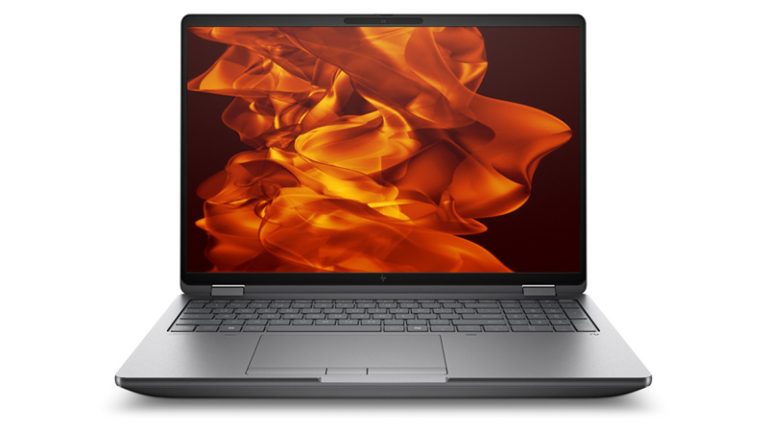
HP Computer Laptops: A Guide to Choosing the Right Model
HP laptops are available in a wide range of sizes and specifications, from lightweight devices for everyday use to powerful computers designed for demanding creative work and gaming. With so many models to choose from, the best option depends on how you plan to use your laptop, where you will use it and what your budget is.
What can you use an HP laptop for?
An HP laptop can suit many different needs. Basic models are often well suited to browsing the web, writing documents, attending video calls and streaming films. Mid-range laptops can offer more memory, faster processors and better screens for multitasking, study or office work. Higher-performance models are designed for tasks such as video editing, graphic design, software development and gaming.
HP’s laptop ranges vary over time, but commonly include mainstream Pavilion models, premium Spectre and Envy devices, business-focused EliteBook and ProBook laptops, and gaming computers in the OMEN and Victus families. Features and specifications differ between individual models, so it is worth checking the details before buying.
Key features to consider
Processor and memory
The processor affects how quickly a laptop handles tasks. For everyday use, a modern entry-level or mid-range processor may be sufficient. More demanding work can benefit from a faster processor and additional memory. For comfortable multitasking, 16GB of RAM is a useful target if it fits your budget, though lighter use may require less.
Storage
Most current laptops use solid-state drives (SSDs), which can help a computer start up and open applications quickly. Consider how much space you need for documents, photos, games and other files. If you store large amounts of media, look for a larger SSD or plan to use external or cloud storage.
Screen size and quality
A smaller screen can make a laptop easier to carry, while a larger display may be more comfortable for working at a desk. Screen resolution, brightness and colour quality also matter, particularly for design work or watching video. Some HP models have touchscreens or hinges that allow the screen to fold back, but these features are not available on every laptop.
Battery life and portability
If you regularly work away from a plug socket, compare the manufacturer’s battery-life estimate with independent reviews where possible. Actual battery life varies according to screen brightness, software, network use and the tasks being performed. Weight, charger size and the laptop’s dimensions are also worth checking if you plan to carry it every day.
Ports and connectivity
Check that the laptop has the connections you need for accessories such as monitors, headphones, external drives and memory cards. Ports can vary between models. Wireless connectivity, webcam quality and microphone performance are also important for video meetings and online learning.
Choosing an HP laptop for your needs
- For browsing and everyday tasks: Look for a comfortable keyboard, a clear screen, an SSD and enough memory for your usual applications.
- For work or study: Consider a reliable webcam, good battery life, a practical selection of ports and a screen size that suits your workspace.
- For creative work: Prioritise processing power, memory, storage and a high-quality display. Check that the graphics hardware supports the software you use.
- For gaming: Compare the graphics processor, display refresh rate, cooling system and memory. Gaming laptops are generally heavier and may need to be plugged in for the best performance.
- For travel: Choose a lightweight model with a compact screen, durable build and battery life suited to your routine.
Getting the most from your laptop
Keep your HP laptop’s operating system, applications and security software up to date. Use a sturdy case when carrying it, keep the ventilation openings clear and avoid placing the computer on soft surfaces that can restrict airflow. Regularly backing up important files to a separate drive or secure cloud service can help protect them if the laptop is lost or damaged.
Before purchasing, compare the exact model number and specifications rather than relying on the product name alone. Check the warranty, return policy and availability of support, as these can vary by retailer and product.
Is an HP laptop right for you?
HP offers laptops across a broad range of budgets and uses, making it possible to find a model for everyday computing, work, study or specialist tasks. The right choice is the one that meets your practical requirements without paying for features you are unlikely to use. Comparing specifications, reviews and prices can help you make a more informed decision.
7 Essential Tips to Keep Your HP Laptop Running Smoothly
- Keep the vents clear to prevent overheating.
- Use the charger supplied with your laptop.
- Install updates through Windows Update and HP Support Assistant.
- Lower screen brightness to save battery.
- Back up important files regularly.
- Clean the keyboard with a soft, dry cloth.
- Shut down or restart occasionally to keep things running smoothly.
Keep the vents clear to prevent overheating.
Keep the vents on your HP laptop clear to help prevent overheating. Place it on a hard, flat surface rather than a bed, sofa or cushion, which can block airflow. Check the vents regularly for dust, and clean them gently according to the manufacturer’s guidance. Good airflow can help your laptop run reliably and may reduce the risk of heat-related performance problems.
Use the charger supplied with your laptop.
Use the charger supplied with your HP laptop whenever possible, as it is designed to provide the power the device needs and is compatible with its charging requirements. If you need a replacement, check that it matches the laptop’s model and the manufacturer’s voltage, wattage and connector specifications; an unsuitable charger may charge slowly, fail to power the laptop properly or cause damage.
Install updates through Windows Update and HP Support Assistant.
Keep your HP laptop secure and running smoothly by installing updates regularly. Use Windows Update to download the latest Windows features, security fixes and driver updates, and check HP Support Assistant for updates recommended for your specific computer, including HP drivers and firmware. Save your work before installing, keep the laptop connected to power, and restart it if prompted.
Lower screen brightness to save battery.
Lowering the screen brightness is a simple way to help your HP laptop battery last longer. The display can use a significant amount of power, so reducing brightness to a comfortable level may extend the time you can work away from a power socket. On most HP laptops, you can adjust it using the brightness keys on the keyboard or through the display settings.
Back up important files regularly.
Back up important files regularly to protect them if your HP laptop is lost, damaged or affected by a technical problem. Save copies to an external hard drive or a trusted cloud storage service, and check occasionally that you can access the files. A regular backup routine helps keep important documents, photos and work safe.
Clean the keyboard with a soft, dry cloth.
Keep your HP laptop keyboard clean by gently wiping it with a soft, dry, lint-free cloth. This helps remove dust and everyday marks without introducing moisture that could damage the keys or the computer. Make sure the laptop is switched off before cleaning, and avoid pressing hard on the keys.
Shut down or restart occasionally to keep things running smoothly.
Shutting down or restarting your HP laptop occasionally can help it run smoothly. A restart closes running programmes, clears temporary system activity and allows updates to finish installing. If your laptop feels slow or an application stops responding, restarting it is a simple first step that may resolve the issue.